
Philips 241V8LB
4.6Editor score
FHD 100Hz refresh rate
VESA mount compatible
Minimal bezel design
Finding the right display for your MacBook Pro is essential for maximizing productivity and enjoying media. A compatible monitor enhances your workflow by providing more screen real estate and better color accuracy for professional tasks.
We compared ten top-rated models based on resolution, connectivity options, and color performance. Each pick offers unique features like USB-C power delivery, high refresh rates, and ergonomic stands to suit various user needs.
Each section highlights key specs and real-world usage scenarios to guide your decision. Note that product availability and pricing may change frequently so always verify the latest details before purchasing your new display.
4.6Editor score

4.5Editor score
5.0Editor score
As an Amazon Associate we earn from qualifying purchases.
The following table provides a side-by-side overview of the leading monitors available for MacBook Pro users. Compare key specifications at a glance to identify the model that fits your specific requirements.



The Dell S2725QC stands out as a top choice for MacBook Pro users seeking a balance of performance and affordability. It offers a sharp 4K resolution and a high refresh rate that makes scrolling and media consumption feel incredibly smooth.
We may earn a commission when you buy through this link, at no additional cost to you.
Its IPS panel delivers vivid colors covering 99% of the sRGB spectrum which is crucial for creative work. The ComfortView Plus technology reduces harmful blue light without distorting colors making it comfortable for long work sessions.
While it lacks advanced features like Thunderbolt the USB-C connection with 65W power delivery simplifies your desk setup significantly. The sound quality is surprisingly good for a monitor allowing you to skip external speakers for casual use.
This monitor is ideal for professionals who need a reliable high resolution display without breaking the bank. It ensures your MacBook Pro gets the crisp visuals it deserves while keeping your workspace organized and efficient.
The 120Hz refresh rate combined with FreeSync Premium ensures that motion looks fluid whether you are editing video or simply browsing the web.
ComfortView Plus minimizes blue light exposure helping to reduce eye strain during extended periods of screen time.
We may earn a commission when you buy through this link, at no additional cost to you.
The BenQ MA270UP is specifically engineered to match the display characteristics of MacBook Pro and Air devices. This unique calibration ensures that colors look consistent across both screens which is vital for designers and content creators.
We may earn a commission when you buy through this link, at no additional cost to you.
You can adjust brightness and volume directly from your MacBook keyboard creating a seamless user experience. The dual USB-C ports support 90W power delivery allowing you to charge your laptop and connect peripherals with minimal clutter.
Although the stand options are somewhat limited to tilt adjustments the visual benefits outweigh this drawback for many users. The wide color gamut delivers stunning visuals that make photos and videos look true to life.
If you prioritize color fidelity and integrated control features this monitor is worth the investment. It bridges the gap between laptop and desktop workflows by making the transition feel natural and intuitive.
Mac Color Match technology calibrates the monitor to display the same color profiles found on Apple devices.
Using your existing MacBook keys to control monitor settings saves time and keeps your desk setup clean.
We may earn a commission when you buy through this link, at no additional cost to you.
The LG 27UP850K-W combines professional grade features with consumer friendly utilities like a built-in streaming platform. Its 4K resolution and HDR400 certification make it a versatile tool for both work and entertainment.
We may earn a commission when you buy through this link, at no additional cost to you.
You can connect multiple devices through its extensive port selection including USB-C with power delivery. The Switch App allows you to multitask efficiently by splitting the screen into multiple sections for different applications.
The ergonomic stand offers height tilt and pivot adjustments which are essential for maintaining a healthy posture. While the WebOS features are unique they add a layer of complexity that might take time to master.
This monitor is an excellent choice for users who want a single solution for productivity and media consumption. It provides the visual quality needed for professional tasks while offering entertainment value during breaks.
HDR400 support brings out details in bright and dark areas enhancing the viewing experience for compatible content.
The Switch App lets you organize your workspace and launch calls with simple keyboard shortcuts.
We may earn a commission when you buy through this link, at no additional cost to you.
The Dell S2425HSM offers a fast 144Hz refresh rate at an affordable price point making it great for gamers and power users. The 1ms response time ensures that moving images remain crisp without distracting blur.
We may earn a commission when you buy through this link, at no additional cost to you.
Despite its budget friendly nature it includes a fully adjustable stand that supports height tilt pivot and swivel. This flexibility is rare at this price point and helps prevent neck strain during long work hours.
Eye comfort is prioritized with TÜV certification which reduces blue light to make viewing more comfortable over time. While it lacks USB-C power delivery the HDMI and DisplayPort connections cover most basic needs effectively.
For users who need speed and flexibility without a high cost this monitor is a strong contender. It delivers a smooth viewing experience that keeps up with demanding applications and gaming sessions.
The 144Hz refresh rate provides fluid motion that is noticeable in fast-paced games and scrolling.
Full adjustability ensures you can set the screen at eye level regardless of your desk height.
We may earn a commission when you buy through this link, at no additional cost to you.
The Philips 241V8LB provides exceptional value for users who need a secondary screen or a simple upgrade. Its VA panel offers deep blacks and high contrast which enhances the viewing of dark scenes in media.
We may earn a commission when you buy through this link, at no additional cost to you.
The 100Hz refresh rate makes a noticeable difference compared to standard 60Hz displays ensuring smooth scrolling and cursor movement. The minimalist design with thin bezels allows it to blend well into multi monitor setups.
While it does not support advanced features like USB-C power delivery it fulfills the basic requirements of a display effectively. The flicker-free technology helps reduce eye fatigue making it suitable for reading documents.
This model is perfect for students or professionals who need a cost-effective solution for daily tasks. It delivers reliable performance and clear visuals without requiring a large investment.
The VA panel produces richer blacks and better contrast than typical IPS panels at this price.
Thin bezels make it easy to pair with other screens for a seamless expanded desktop view.
We may earn a commission when you buy through this link, at no additional cost to you.
The LG 27US500-W features a premium white finish that matches well with Apple devices and modern desks. Its 4K resolution provides sharp text and detailed images that are ideal for graphic design work.
We may earn a commission when you buy through this link, at no additional cost to you.
With HDR10 support and 90% DCI-P3 coverage it delivers vibrant colors that pop on the screen. The borderless design maximizes the viewing area and reduces distractions when looking at content.
Although it lacks USB-C power delivery the multiple HDMI and DisplayPort connections offer flexibility for various setups. The Flicker Safe technology ensures comfortable viewing even during extended use periods.
This monitor is an aesthetic choice for users who value design as much as performance. It brings a clean and refined look to any workspace while delivering solid visual quality.
The white finish complements white MacBooks and Macs perfectly for a cohesive look.
Borderless sides create an expansive view that draws you into the content.
We may earn a commission when you buy through this link, at no additional cost to you.
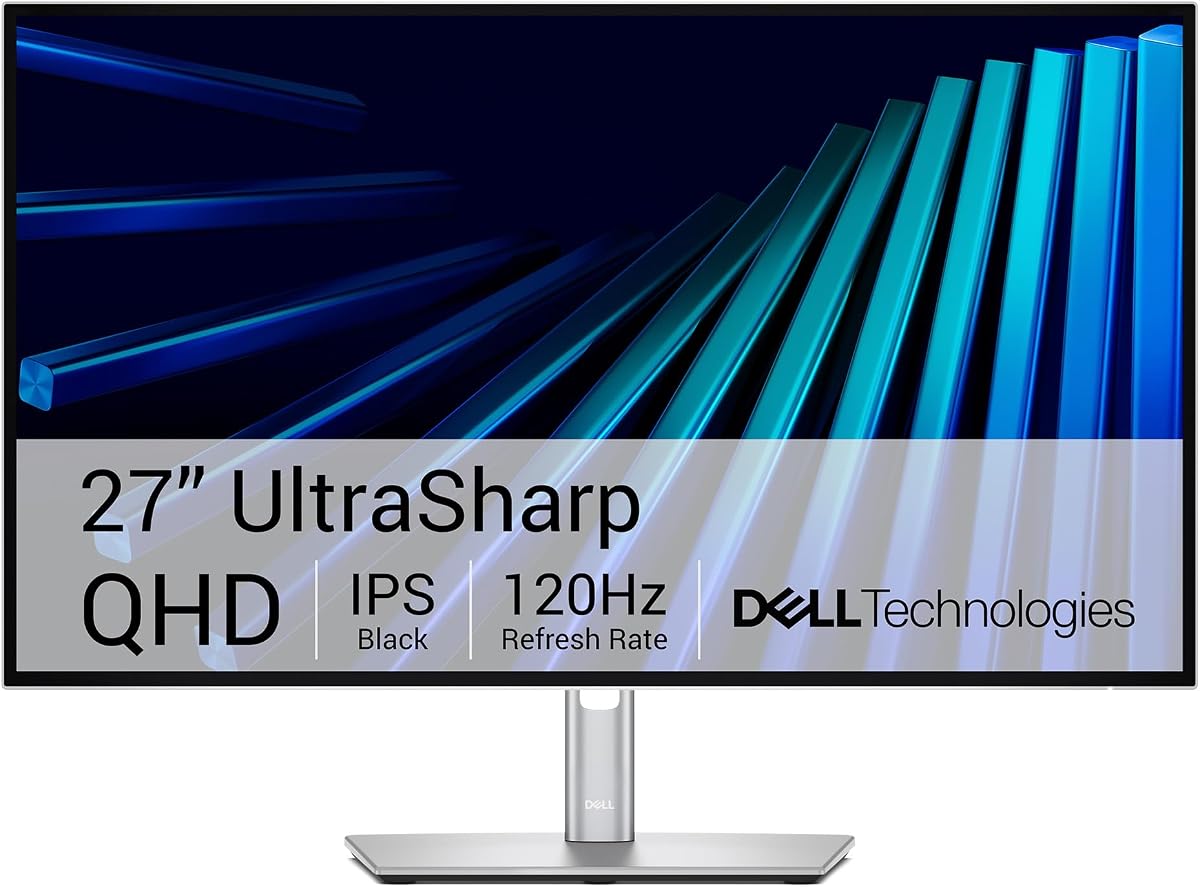
The Dell UltraSharp U2726DER is a top tier display designed for professionals who demand the best connectivity. It uses Thunderbolt to provide high speed data transfer and video signal over a single cable.
We may earn a commission when you buy through this link, at no additional cost to you.
The built-in KVM switch allows you to control two computers with one keyboard and mouse. This feature is incredibly useful for those who switch between a Mac and a PC frequently throughout the day.
Factory calibration ensures that colors are accurate right out of the box saving time on setup. The 120Hz refresh rate adds smoothness to the viewing experience even for static work tasks.
For professionals who need robust features and reliability this monitor is a superior choice. It justifies its price with performance and versatility that other displays simply cannot match.
Thunderbolt offers faster data speeds and single cable docking compared to standard USB-C.
Switch between devices instantly using the KVM switch for a streamlined workflow.
We may earn a commission when you buy through this link, at no additional cost to you.
The BenQ PD2706QN features an anti-glare nano matte finish that minimizes reflections in bright environments. This makes it an excellent choice for designers working in well-lit studios or offices.
We may earn a commission when you buy through this link, at no additional cost to you.
It supports daisy chaining allowing you to connect multiple monitors with a single cable from the source. This reduces cable clutter significantly and makes for a cleaner desk setup.
With factory calibration and ICCsync technology the color consistency across different displays is maintained easily. The 90W USB-C power delivery ensures your laptop stays charged while connected to the monitor.
For creatives who work in environments with varying light conditions this monitor provides the clarity needed for precise work. Its specialized features help maintain a professional workflow without distractions.
The matte finish reduces glare from windows and lights improving visibility.
Daisy chaining lets you link monitors easily without extra cables to the computer.
We may earn a commission when you buy through this link, at no additional cost to you.
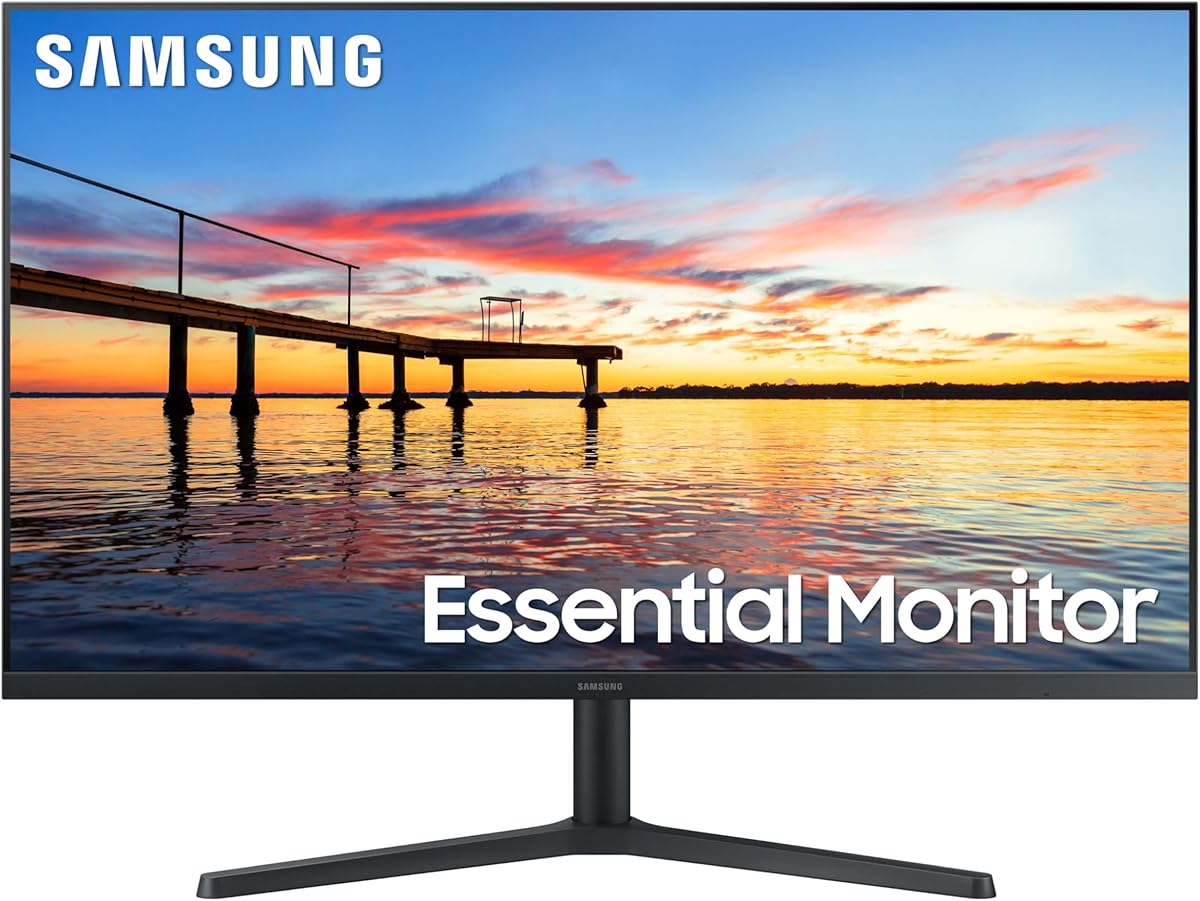
The Samsung 32 Flat offers a large 32-inch screen that is perfect for watching movies or multitasking. Its borderless design creates an immersive viewing experience by minimizing the distractions of the bezel.
We may earn a commission when you buy through this link, at no additional cost to you.
FreeSync technology ensures that visuals remain smooth during dynamic scenes which is great for media consumption. Eye Saver Mode reduces blue light exposure to help protect your eyes over time.
While it may not have the highest resolution available in this list the size provides plenty of room for windows. This makes it a good choice for users who prioritize screen size over pixel density.
If you are looking for a big screen that is easy on the eyes this model fits the bill. It provides a comfortable environment for long sessions of work or entertainment.
The large 32-inch panel fills your field of vision for a more engaging experience.
Blue light reduction helps keep your eyes fresh during long viewing sessions.
We may earn a commission when you buy through this link, at no additional cost to you.
The LG 27U631A-B offers a solid QHD resolution that is sharper than FHD but less demanding than 4K. It supports HDR10 content which enhances the contrast and color depth of compatible media.
We may earn a commission when you buy through this link, at no additional cost to you.
The USB-C port provides 15W power delivery which is enough to charge phones but not laptops fully. However the high refresh rate ensures that the interface feels responsive and smooth.
Its slim stand takes up less desk space compared to bulkier options making it suitable for smaller workstations. Reader Mode adjusts the screen to a warmer tone to reduce strain when reading text.
This monitor is a practical choice for those who want modern features without a high price. It strikes a good balance between performance and cost for everyday users.
QHD offers a sweet spot of sharpness without requiring powerful hardware to drive it.
Warmer screen tones make reading documents less straining on the eyes.
We may earn a commission when you buy through this link, at no additional cost to you.
Choosing the right monitor requires considering several factors that affect your daily workflow and comfort. This section breaks down the key specifications to help you make an informed decision.
Resolution determines the sharpness of text and images on your screen. Higher resolutions like 4K provide crisp details which are essential for creative work and reading.
Prioritize 4K resolution if you work with detailed graphics or want the sharpest text for reading.
MacBooks rely heavily on USB-C and Thunderbolt ports so checking compatible connectors is vital. Look for monitors with direct USB-C support to reduce the need for adapters.
Choose a monitor with USB-C power delivery to charge your laptop while using a single cable connection.
Color accuracy ensures that what you see on the screen matches print or other devices. Monitors with sRGB or DCI-P3 coverage are better for professional color work.
Select monitors with high color gamut coverage to ensure vibrant and accurate colors for your projects.
Refresh rate impacts how smoothly motion appears on screen. While 60Hz is standard higher rates like 120Hz make scrolling and gaming look much smoother.
Opt for a higher refresh rate if you want a fluid experience during movement or gaming.
A good stand allows you to adjust height tilt and pivot to suit your posture. This helps prevent strain during long work sessions.
Ensure your chosen monitor offers height adjustment and pivot for a comfortable viewing angle.
Extra features like KVM switches built-in speakers or HDR support add value depending on your needs. Consider what tools you need daily to decide if these extras are worth the cost.
Assess if features like HDR or KVM switches align with your specific workflow requirements.
Features like blue light reduction and flicker-free technology protect your eyes from strain. These are important if you work in front of a screen for hours.
Look for TÜV certified eye comfort features to maintain eye health during long hours of use.
A durable build ensures the monitor lasts longer and performs consistently. Warranties provide peace of mind against defects.
Choose models with robust build quality and reliable warranty support for long-term peace of mind.
Connect your monitor using the appropriate cable and ensure your MacBook is plugged into a power source. Check display settings in System Preferences to enable the optimal resolution and refresh rate.
Clean the screen with a soft microfiber cloth to remove dust and smudges. Avoid using harsh chemicals or spraying liquid directly onto the display to prevent damage to the panel.
Adjust brightness levels based on your environment to reduce eye strain. Use night shift modes in the evening to maintain a comfortable viewing experience.
Most modern MacBooks use USB-C so you can connect directly if the monitor has a USB-C port. If your monitor only has HDMI or DisplayPort you will need a compatible adapter or cable.
4K resolution is ideal for productivity as it offers sharp text and ample screen real estate. It allows you to view more content at once which can boost efficiency.
Yes if the monitor supports USB-C power delivery it can charge your MacBook. However check the wattage to ensure it meets your laptop’s power requirements.
MacBooks are known for their color accuracy so a matching monitor ensures what you see is true to life. This is critical for photo editing design work and creative projects.
Ensure you have selected the native resolution in your system settings. Also check your scaling options to optimize text clarity for your specific screen.
Thunderbolt monitors offer faster data transfer and single cable connectivity which is valuable for power users. If you need high speed and simplicity they are a great investment.
We reviewed ten top monitors for MacBook Pro users ranging from budget picks to premium professional models. Each option offers unique features tailored to different needs and preferences.
Prioritize resolution and connectivity to ensure your workflow remains efficient and smooth. Consider your specific tasks like design or gaming to find the best fit.
Always check the latest prices and availability before making your purchase. A small investment in a quality monitor can greatly enhance your computing experience.